
Article
Control Charts
Create and interpret control charts easily and conveniently
QSuite lets you create different types of charts for your analyses. Each chart can be configured to suit your needs.
Introduction
Control charts allow you to monitor the behavior of a process to determine whether it is performing in a controlled state or not. A control chart can identify two types of variation:
- Common cause variation: This is the expected variation of the process and occurs when data remains within calculated control limits.
- Special cause (assignable cause) variation: This type of variation indicates that the process is being affected by one or more external variables. This type of variation is a signal that action should be taken on the process.
There are two groups of control charts you can build with QSuite:
- Charts for continuous data: This group includes individuals and moving range (X-MR), averages and ranges (X-R), and averages and standard deviation (X-S) charts. These charts are used when you want to plot data where a decimal point makes sense (temperature, revenue, costs, time, etc.)
- Charts for count data: This group includes defective unit charts (P and NP) and defect charts (C and U). These charts are used when you want to plot data where a decimal point does not make sense (e.g., number of people, number of non-conformances, number of defects, number of accidents, etc.)
Creating a Control Chart
Creating a New Chart from the Menu Bar
To create a chart from the menu bar, follow these steps:
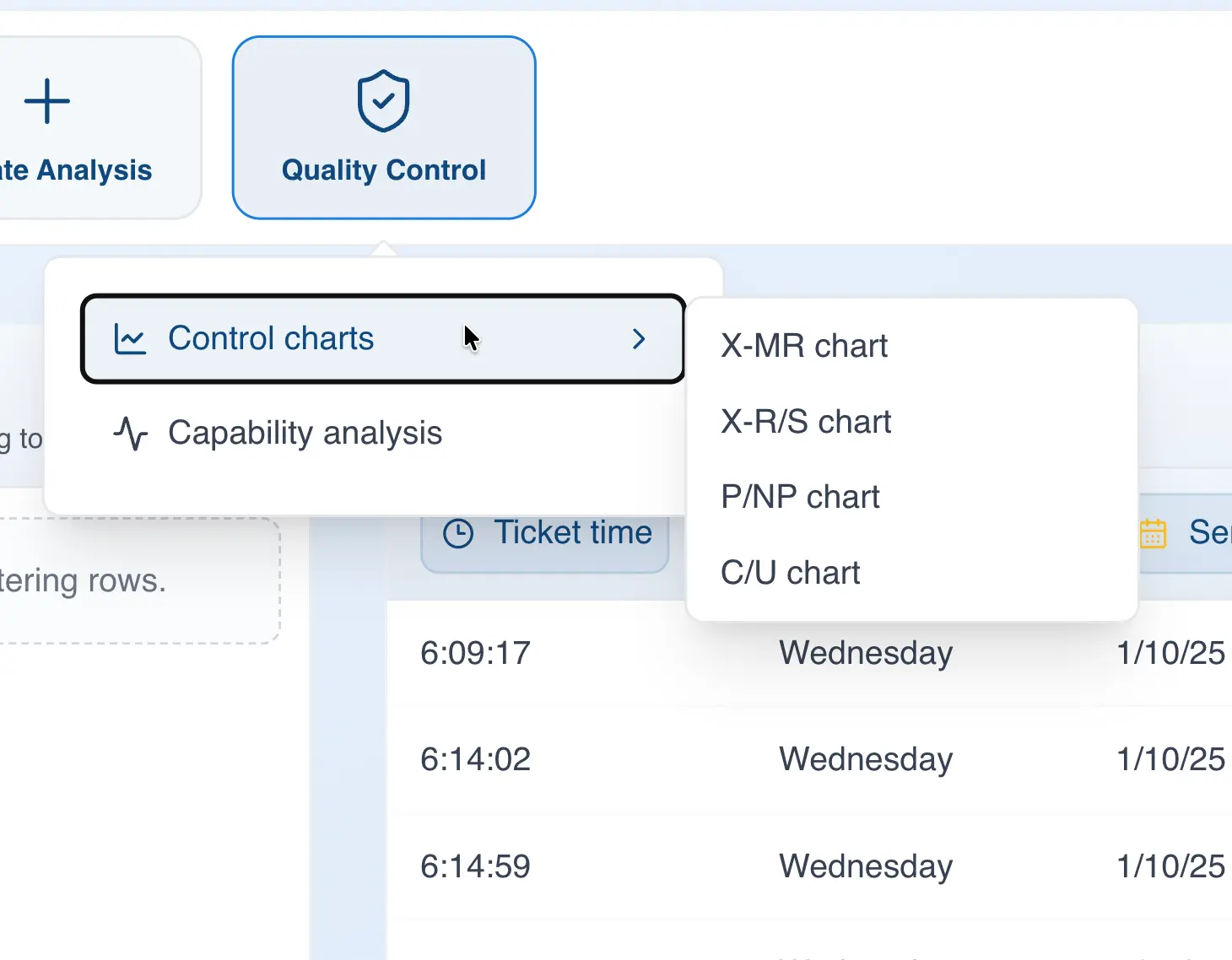
- Click on "Quality Control"
- Hover over "Control Charts"
- Choose the control chart you want to create from the dropdown list
- In the "Values" section, drag the column you want to analyze
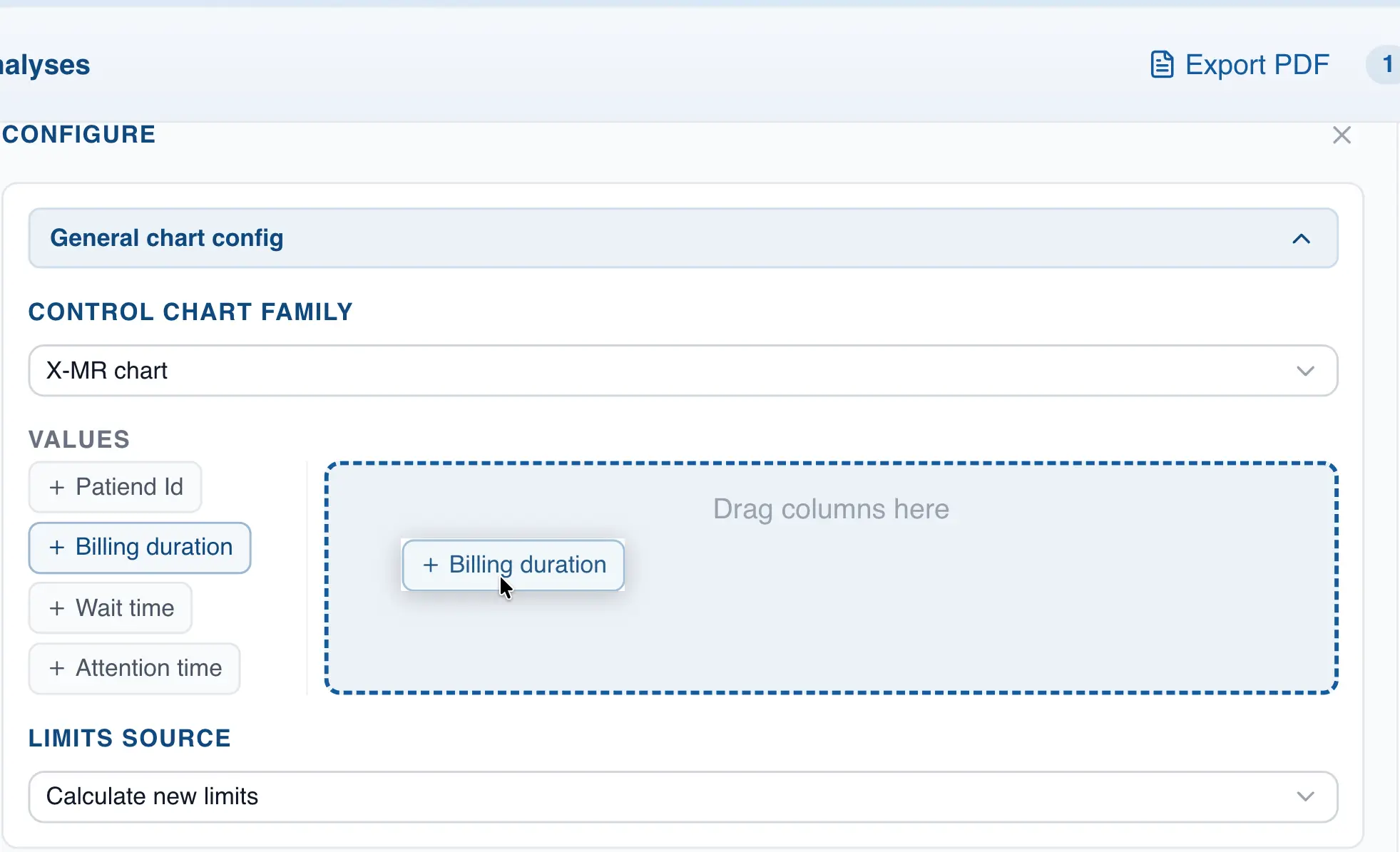
- With the exception of the individuals chart (X-MR), you will also need to specify the subgroup size. Go to the "Specifying subgroup size" section for more information.
Creating a New Chart by Drag and Drop
- Drag the column you want to analyze to the analysis panel
- Drop the column in the control chart zone you want to build
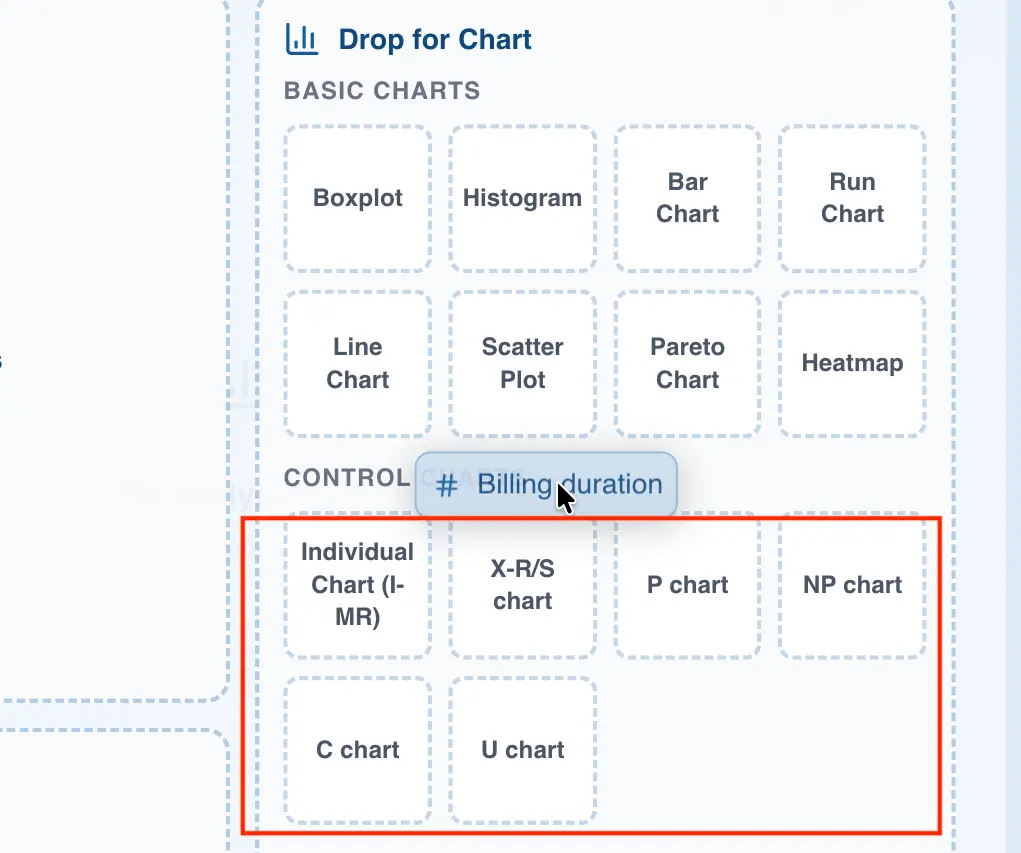
- If you are not building an individuals and moving range chart, specify the subgroup size to generate the chart. Go to the following section for more information on how to do this.
Specifying the Subgroup Size
When you are building a control chart other than individuals and moving range (X-MR), you will need to specify the subgroup size. In QSuite you have two ways to do this:
- Specifying a fixed subgroup size. With this option you simply specify a number and QSuite automatically builds the subgroups. For example, if you set the subgroup size to 5, QSuite will form one subgroup every 5 observations.

- Specifying a subgroup column. This option is useful when you have already formed the subgroups beforehand and have a column to identify which subgroup each observation belongs to.
For example, the image below shows a dataset with a column to identify the subgroup each observation belongs to.
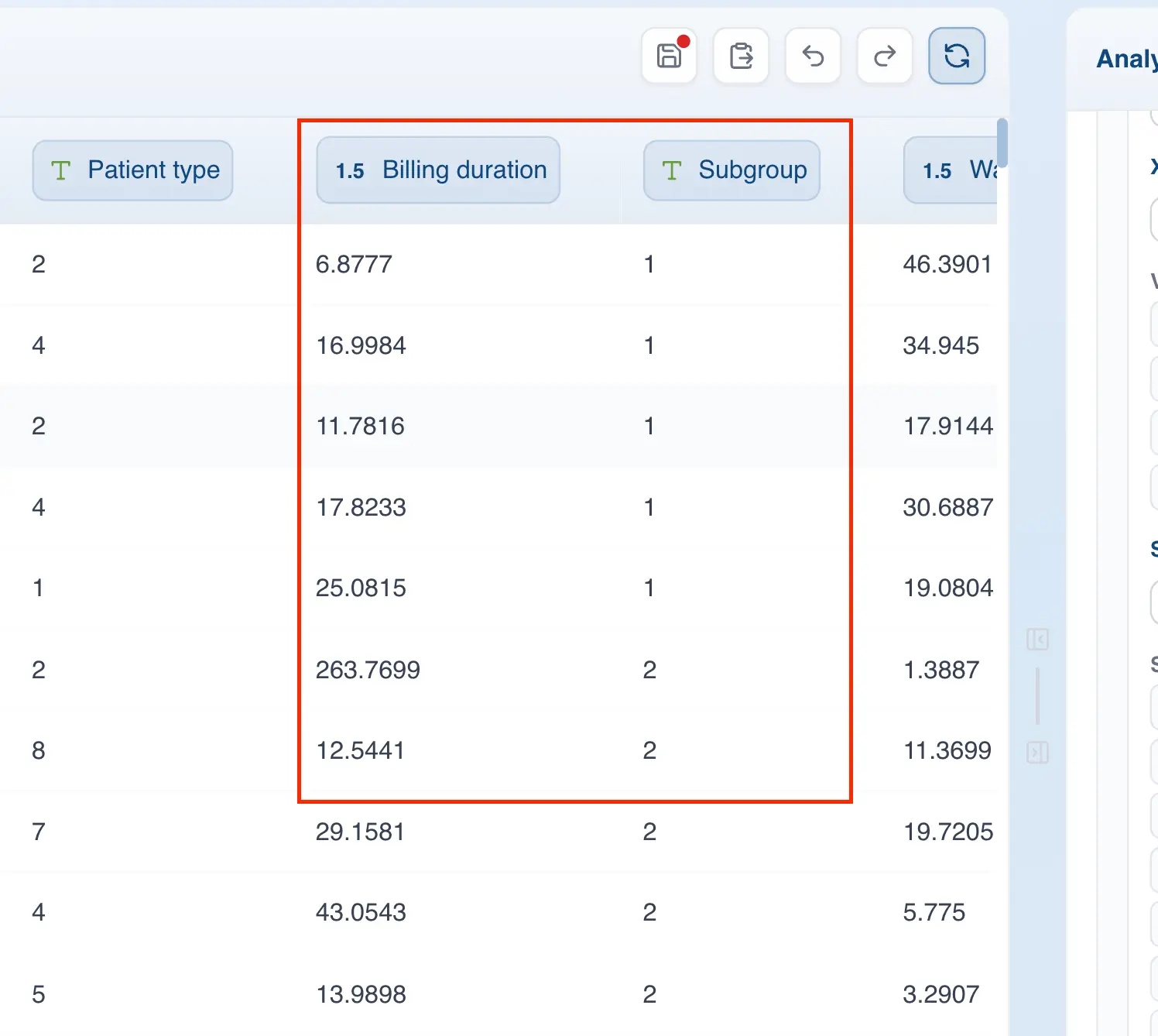
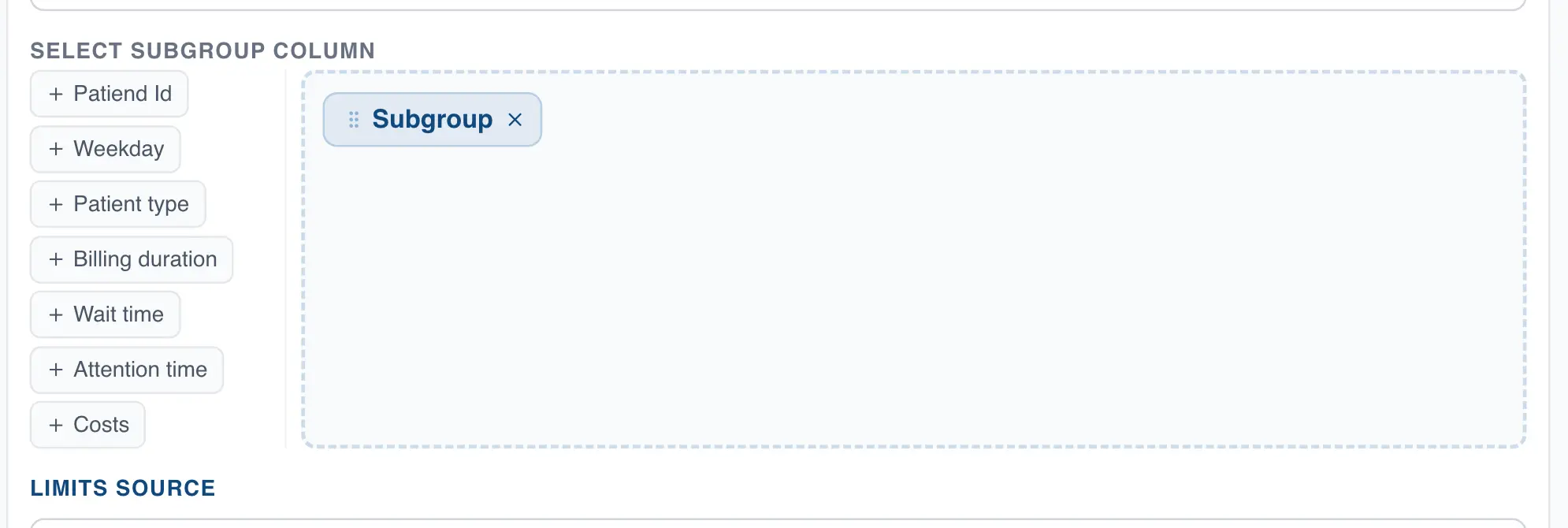
To specify this column when building the chart, do the following:
- Go to the "Subgroup Definition" section in the chart configuration panel
- Click on the dropdown list to select the "Subgroup column" option
- Drag the column containing the subgroups to the right-hand zone
Navigating to the Source Data Point
In some situations you will need to look up contextual information related to a point on the control chart that is in another column of the worksheet. In QSuite you can easily navigate from the control chart to the cell where the point you want to look up is located. To do so, follow these steps:
- Click on the point on the control chart you want to look up
- Click on "Go to data point"
QSuite will automatically highlight the cell in the worksheet where the point you just selected is located.
Interpreting a Control Chart
Configuring Control Chart Interpretation Rules
There are several rules for interpreting patterns in control charts. QSuite supports two rule sets: the Western Electric rules and the Nelson rules.
The Western Electric rule set has a total of 4 rules while the Nelson rule set has 8 rules. By default QSuite uses the Western Electric rule set.
To change the rules, simply follow these steps:
- If it is not already open, open the chart configuration panel by clicking the gear icon

- Go to the "Rule settings" section. You can enable or disable rules by clicking the checkbox. You can also change the number of consecutive points required to trigger each rule.
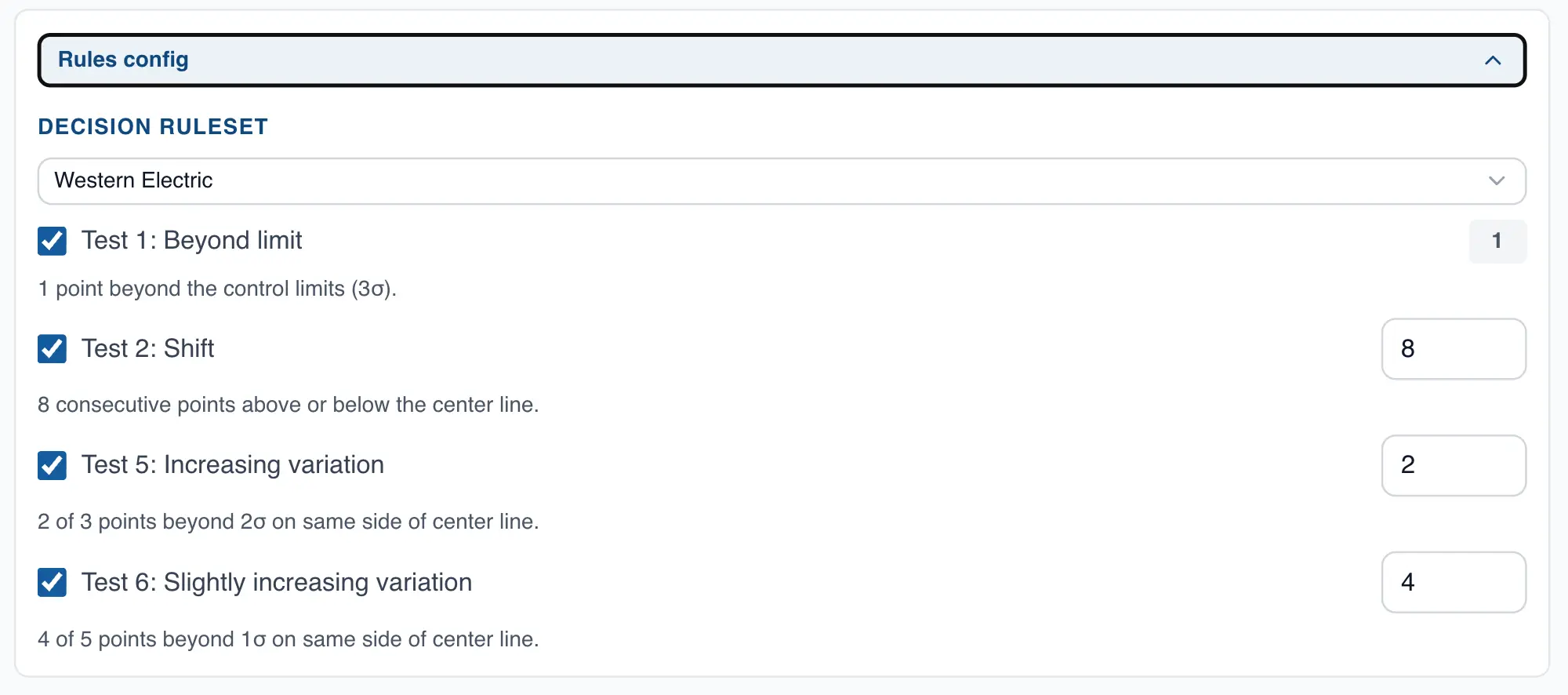
- To change the rule set, click on the dropdown list and select the Nelson rule set.

Displaying Control Chart Zones
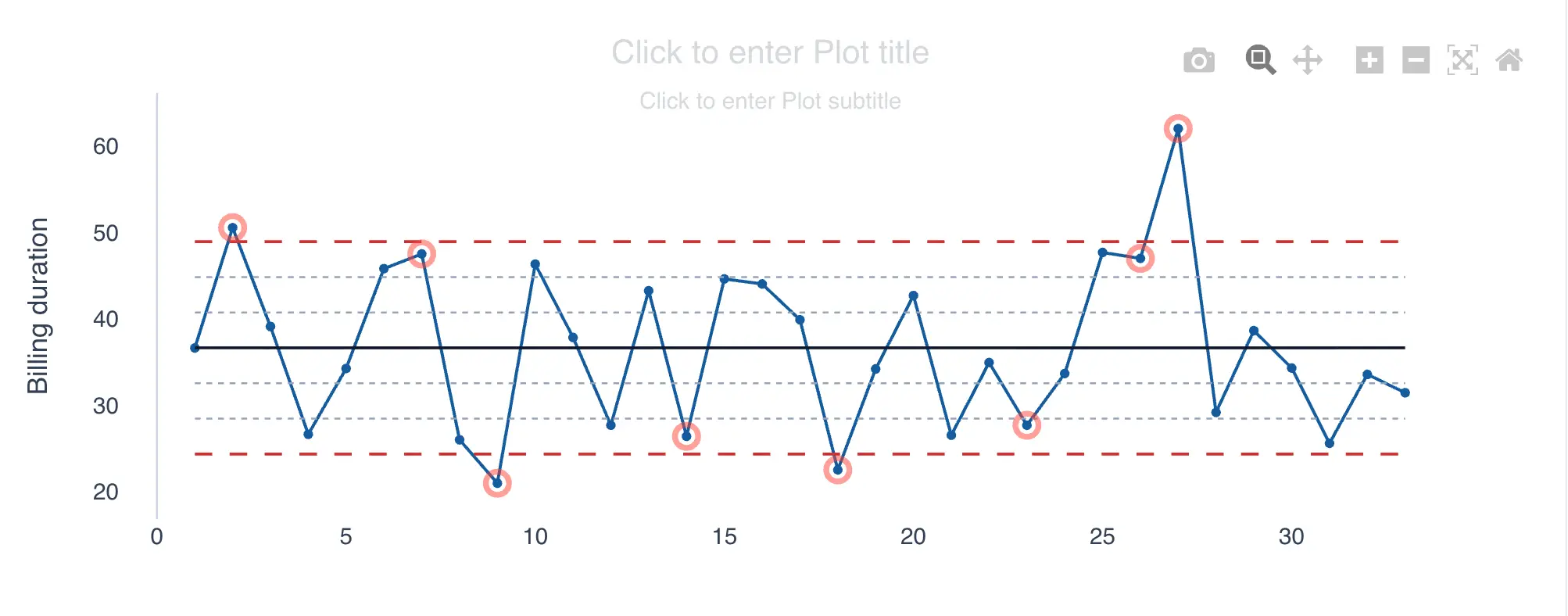
By default QSuite builds the control chart with limits at +/- 3 sigma. However, you also have the option to display limits at +/- 1 sigma and +/- 2 sigma. This allows you to divide the charts into zones.
To display the zones, follow these steps:
- If it is not already open, open the chart configuration panel by clicking the gear icon
- In the "Display settings" section, check the option "Show control zones"

When you enable this option the chart will display limits at 1, 2, and 3 sigma as shown in the image below:
Interpreting the Control Chart
QSuite automatically marks with a red circle each point that violates one of the rules described in the previous section, as shown in the image below.
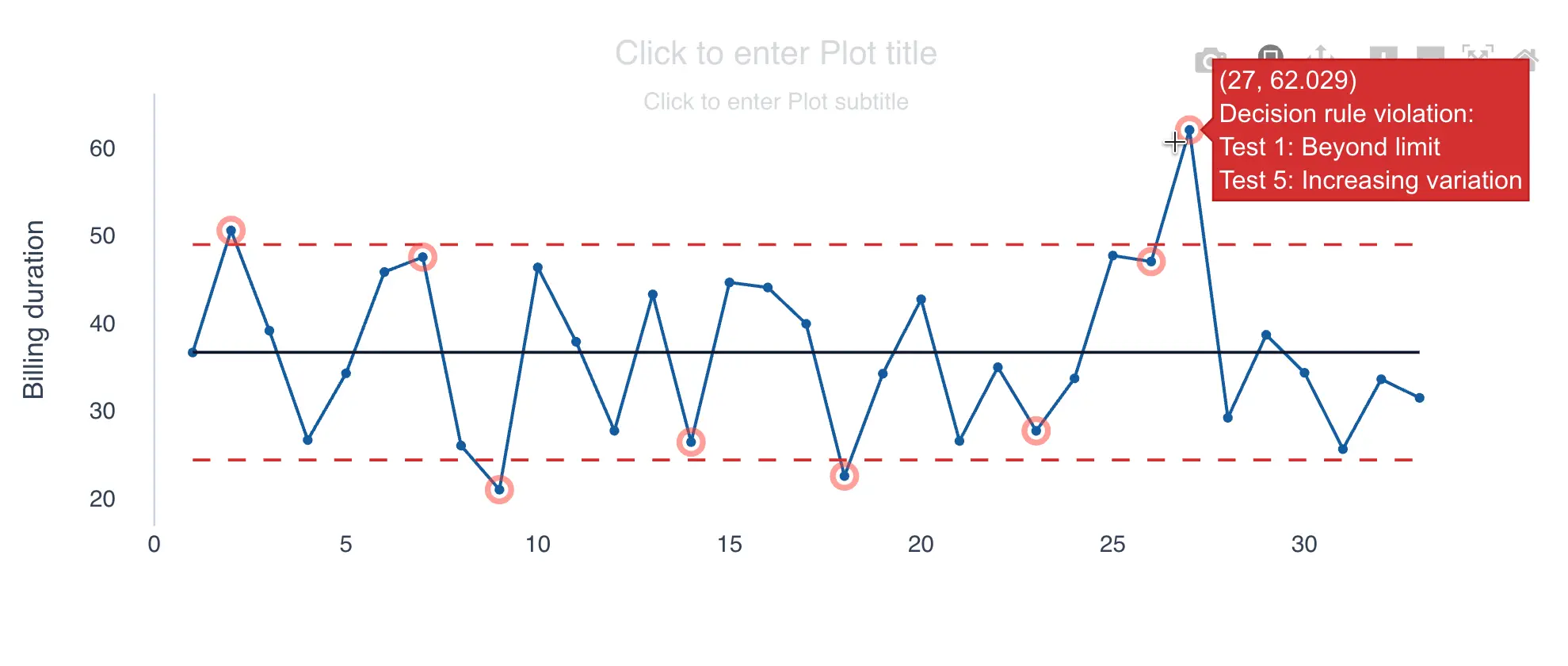
If you hover over the point marked in red, QSuite will show a tooltip indicating which rules were triggered.
When a rule violation is identified, it means the cause of this behavior should be investigated and corrective actions taken.
With QSuite you also have the option to display all the points that formed the pattern. This is useful during a root cause investigation, since the problem may have started several observations before the pattern was completed.
To show all the points that form the pattern, follow these steps:
- Click on the point marked in red
- In the menu that appears, click on "Show all pattern points"
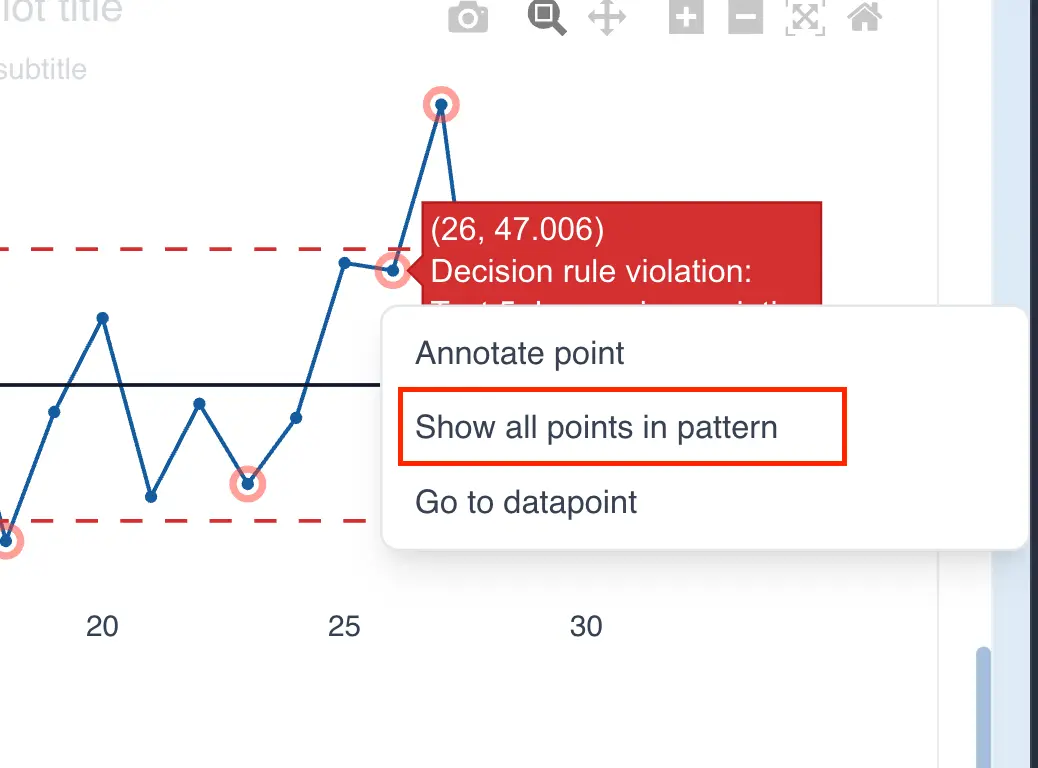
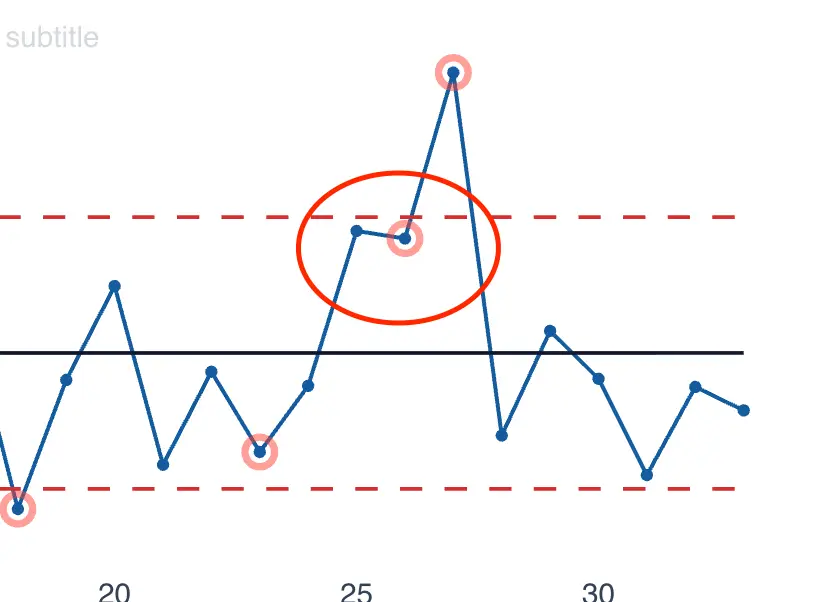
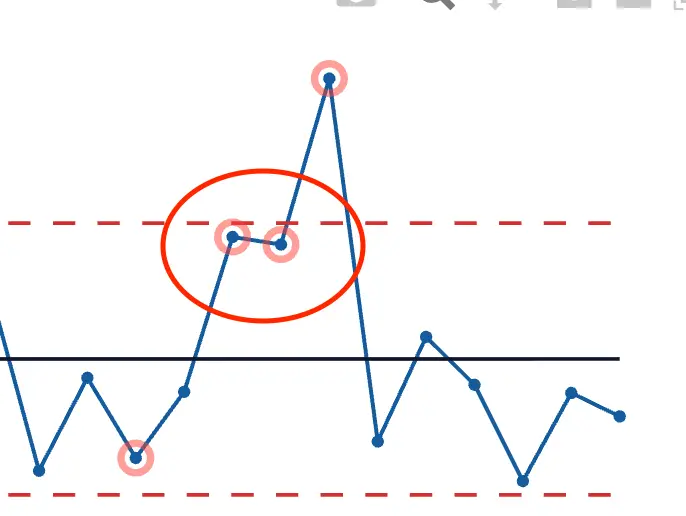
When you click, QSuite will highlight in red all the points that are part of the pattern that triggered the rule. The two images below show an example of this.
- By default only the last point that formed the pattern is shown
- When the option is enabled all pattern points are shown
Staged Analysis of Control Charts
With QSuite you can perform a segmented analysis of control charts. This is known as a staged or phase analysis.
Staged analysis consists of segmenting the data using the values of a categorical column (e.g., machine, location, person, request type, etc.). To perform a staged analysis, follow these steps:
- If it is not already open, open the chart configuration panel by clicking the gear icon
- Go to the "Display settings" section and enable the "Split chart by stages" checkbox

- From the dropdown menu, choose the column you want to use to segment the control chart
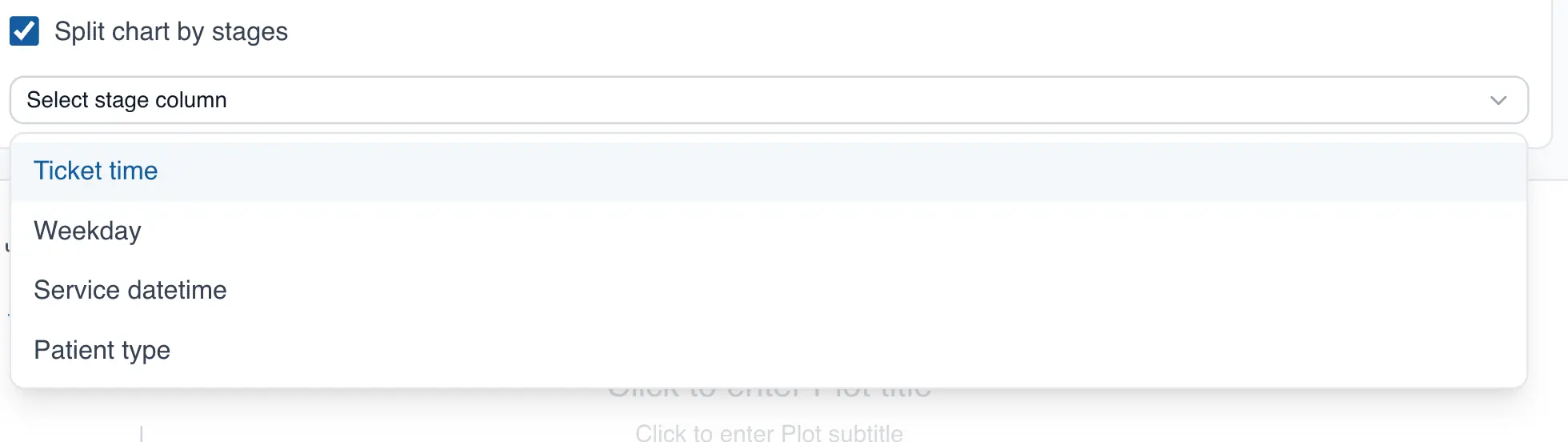
After selecting the column, your control chart will be displayed for each category contained in the column. The example below shows a control chart split by day of the week.
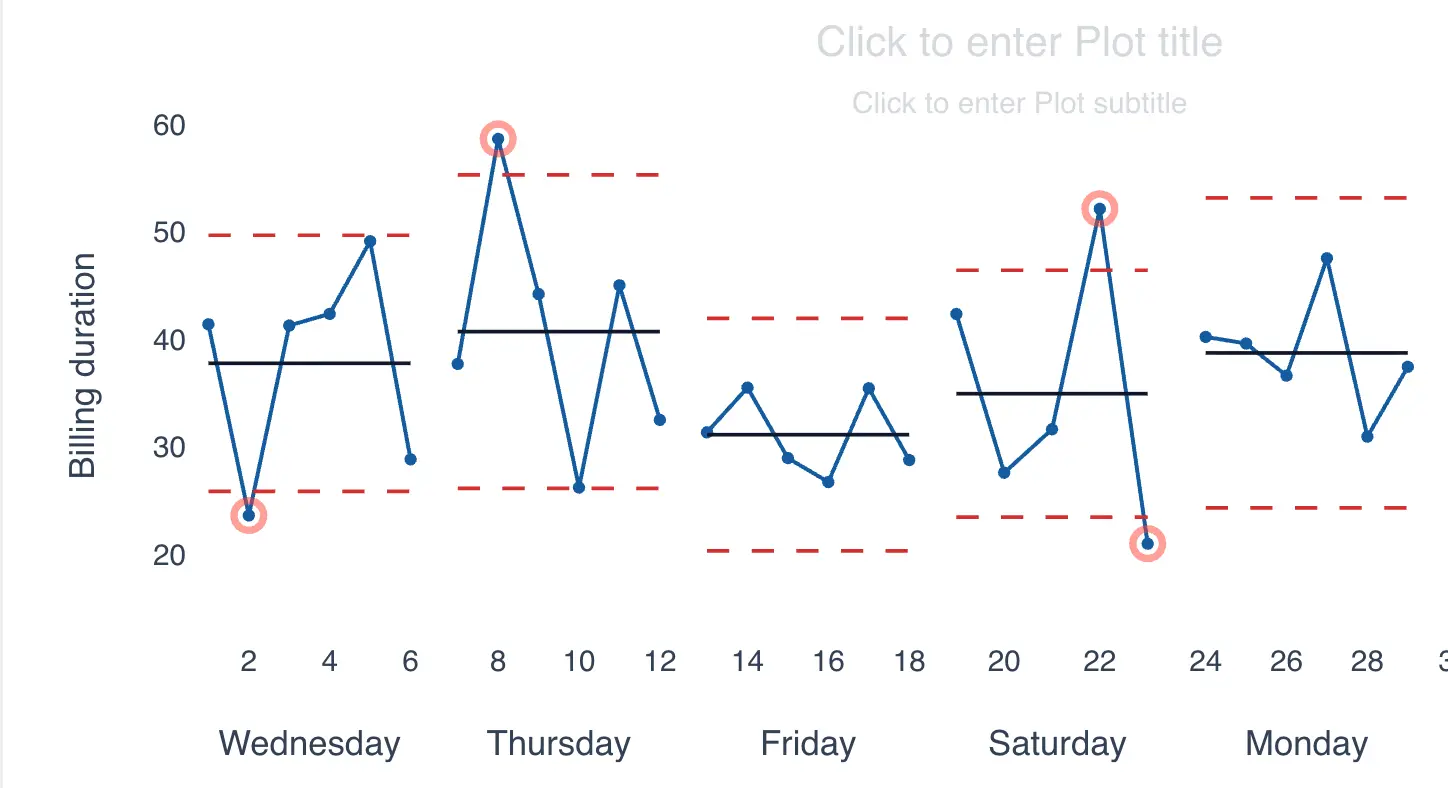
Notice how it is easy to identify performance differences in the process across days of the week. For example, Friday has the tightest limits and also the lowest mean compared to the other days.
Annotating Points on the Control Chart
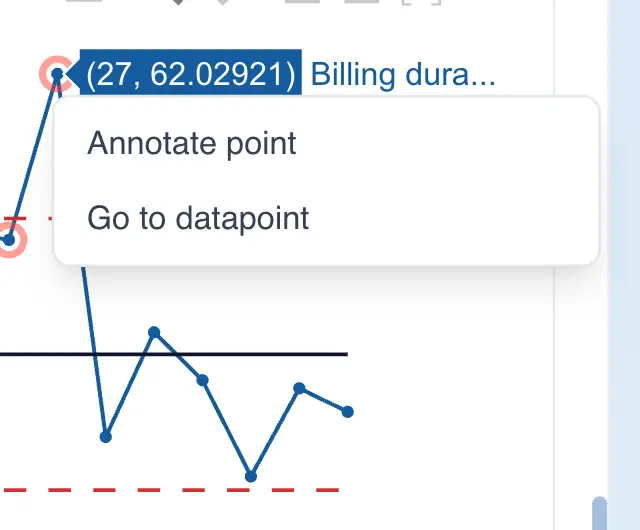
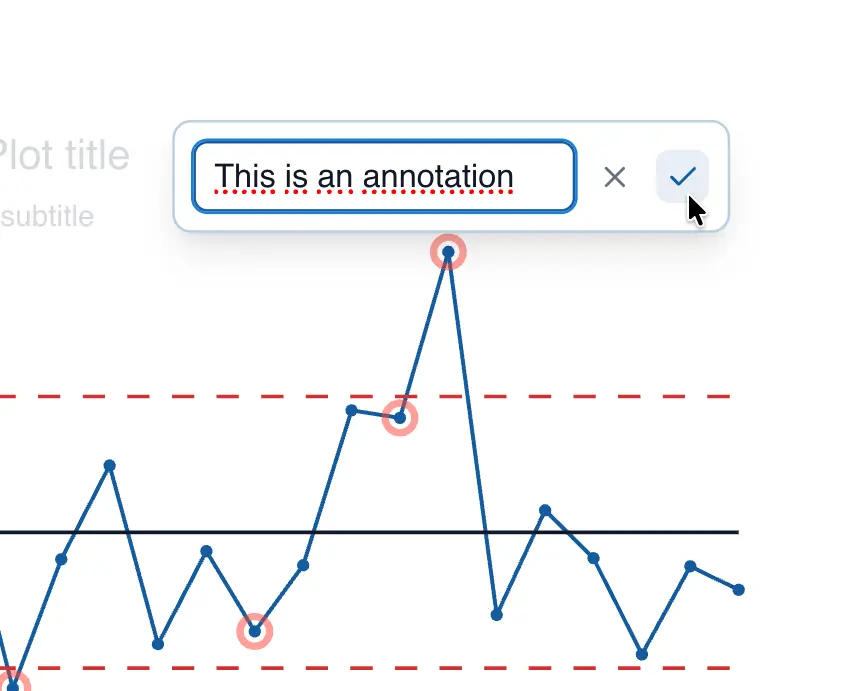
QSuite lets you easily annotate a point on the control chart. To do so, follow these steps:
- Click on the data point you want to annotate
- In the menu that appears, click on "Annotate point"
- Enter the text and click the checkmark to save your changes
Fixing Control Limits
Obtaining the Process Mean and Standard Deviation
When you build a control chart, QSuite displays a process statistics summary box. This box is located just below the chart:
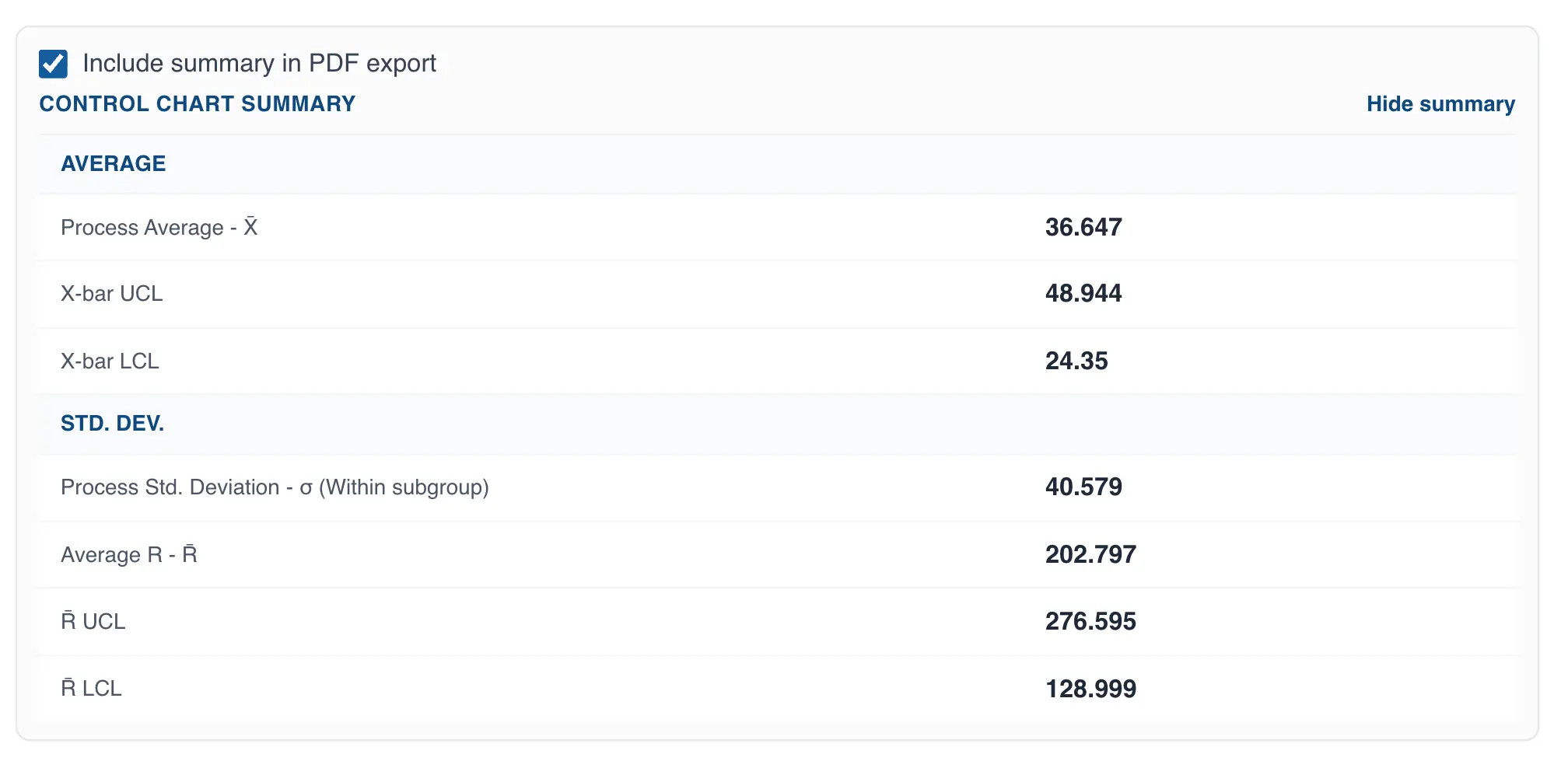
This box shows both the process mean and its standard deviation. This information is required when you want to build a control chart with previously established limits.
Setting Fixed Control Chart Limits
Control chart limits should only be recalculated when there is a permanent change in the process. Otherwise, the limits should be fixed since they serve as the reference baseline against which the process is compared over time.
By default, QSuite calculates limits automatically each time you build a control chart. When you need to fix them, follow these steps:
- If it is not already open, open the chart configuration panel by clicking the gear icon
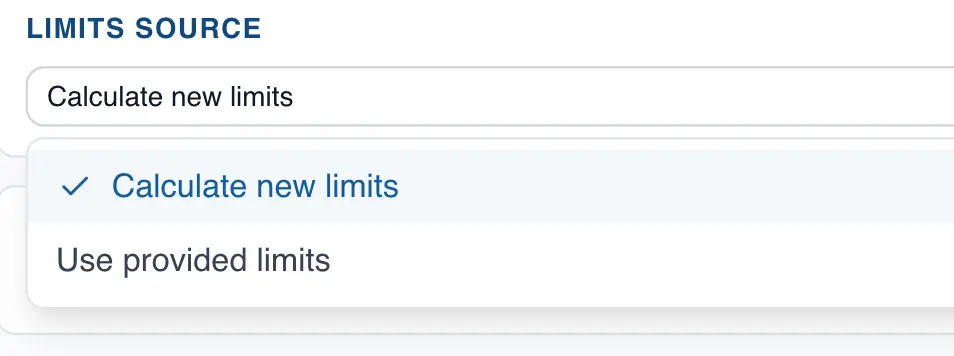
- Go to the "Limit source" section

- Click on the dropdown list and select "Use provided limits"
- Enter the process mean and standard deviation information.
